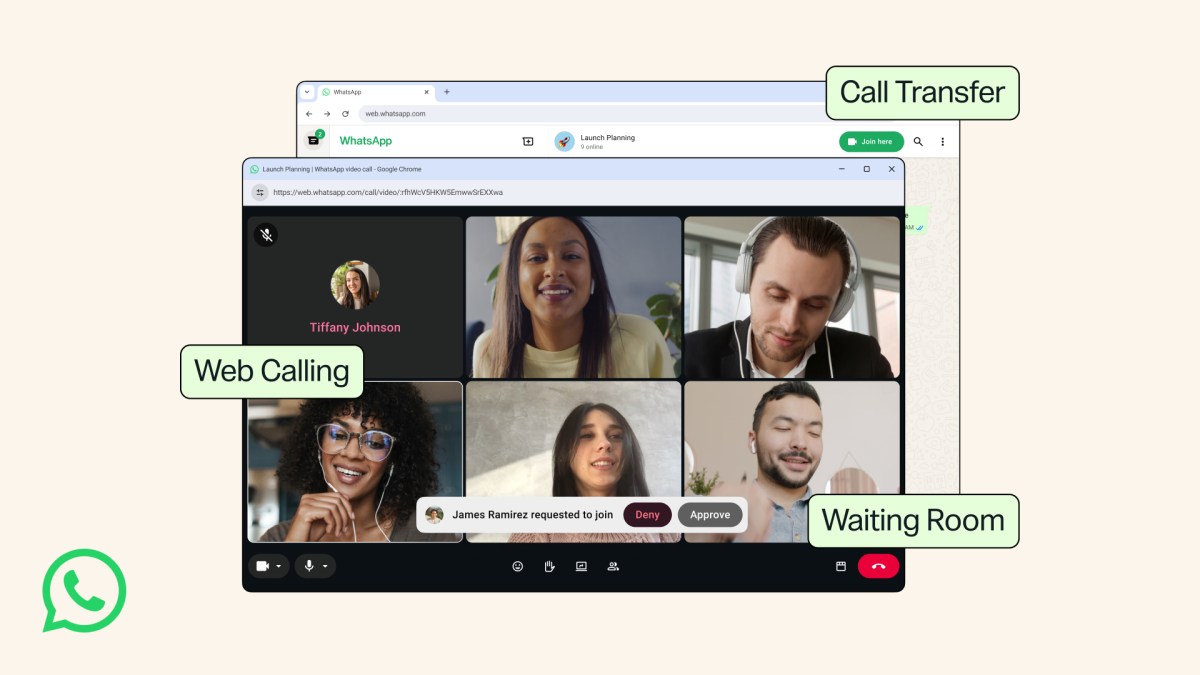
WhatsApp Web Calling lets you make and receive one-on-one and group audio or video calls directly in WhatsApp Web, without downloading the desktop app. Meta’s July 28, 2026 announcement says the web experience is end-to-end encrypted, free, has no time limits, adds a Calls tab with call history and favorites, supports cross-device call transfer, and is rolling out gradually.
Direct answer
If you want the short version, WhatsApp Web Calling is the browser-based way to place WhatsApp calls from your computer. You can use it for individual calls or group calls, and you do not need to install the desktop app just to call from the web.
The most important practical detail is availability. Meta said the feature is rolling out gradually, not that it has already reached every account at the same moment. If you do not see it yet, your account may not have received the rollout.
What WhatsApp Web Calling includes
According to Meta’s announcement, the web calling update includes these confirmed features:
- One-on-one audio calls from WhatsApp Web.
- One-on-one video calls from WhatsApp Web.
- Group audio calls from WhatsApp Web.
- Group video calls from WhatsApp Web.
- No desktop app download required.
- A Calls tab with your full call history and favorites.
- Screen sharing and reactions available from the browser experience.
- End-to-end encryption.
- No time limits.
- No call charge from WhatsApp.
- Active group call transfer from one device to another without hanging up.
- A waiting room for group call links when “Require approval to join” is enabled.
- QuickHD for high-definition video in the first few seconds of a call.
- Noise suppression to reduce background sound.
This is more than a basic call button. WhatsApp Web now has its own call controls while keeping calls inside the same encrypted WhatsApp account system.
How to use it
Meta did not publish a long setup wizard in the announcement, so the simplest way to use the feature is to follow the normal WhatsApp Web flow and look for the calling tools once the rollout reaches your account.
- Open WhatsApp Web in your browser and sign in to the account you already use on WhatsApp.
- Look for the Calls tab if it is available in your account.
- Start a one-on-one call or choose a group call from the browser interface.
- During a call, use the available in-call controls for things like reactions, screen sharing, and noise suppression when they appear.
- If you need to move a group call to another device, transfer it instead of ending the call and starting over.
If you are joining a group call link and the host has enabled approval, expect a waiting room first. In that case, you enter the waiting room until the host admits you.
If the Calls tab is missing, the most likely explanation from the official announcement is that the gradual rollout has not reached your account yet. That is different from a permanent failure.
Who it is useful for
The official announcement points to a few clear use cases.
WhatsApp Web Calling is useful if you are:
- On a shared computer and do not want to install a desktop app.
- Using a work laptop that does not allow app downloads.
- Already living in your browser and want to keep calls there too.
- Moving between a phone, tablet, desktop, and browser during the same group call.
- Joining a group call and want the host to control entry with approval.
- Calling in a loud place and want noise suppression to make your voice easier to hear.
It is a practical option for students on shared computers, people using work laptops that block app downloads, and anyone who moves between devices during the day.
How it differs from desktop and mobile
The biggest difference is where the call starts.
On mobile, WhatsApp calling is part of the phone app. That is still the most natural option when you are away from a computer or want to use the phone’s built-in camera and microphone setup.
On the desktop app, WhatsApp already gives you an installed computer experience. The new announcement adds a related behavior: active group calls can move between devices without hanging up.
On WhatsApp Web, the call starts in the browser and does not require the desktop app at all. That matters if you want quick access from a browser session, a locked-down laptop, or a shared machine.
Meta does not claim that every WhatsApp version has an identical interface. Its announcement confirms web calling, call transfer, the Calls tab, and the browser call features, but it does not publish a browser-by-browser compatibility table. If a control is missing or behaves differently, check WhatsApp’s current help pages before assuming your browser supports it.
Privacy, security, and permissions
Meta says WhatsApp Web Calling is end-to-end encrypted. In plain language, that means the call is protected in transit in the same WhatsApp security model people expect from the app.
That does not remove the need to handle browser permissions carefully. A browser call still needs access to the microphone, and a video call needs access to the camera. If you block those permissions, the call may not work even if the feature itself is available.
Before you place a call, check:
- Whether the browser has permission to use your microphone.
- Whether the browser has permission to use your camera if you want video.
- Whether the operating system is also allowing mic or camera access.
- Whether the call is happening on the account you intended to use.
If you are deciding whether a page, prompt, or login flow is legitimate, use how to check if an app is safe first. That is especially useful if you are not sure whether you are on the real WhatsApp Web experience.
Troubleshooting and rollout
The official announcement makes one troubleshooting point clear: the feature is rolling out gradually. That means absence is not always a bug.
If WhatsApp Web Calling is not showing up, work through the problem in this order:
- Confirm that you are on the official WhatsApp Web experience, not a copied or unrelated page.
- Check whether the Calls tab is present in your account.
- Make sure microphone and camera permissions are enabled if you want to call.
- Refresh the page or sign in again if the interface looks stale.
- If a group call link is asking for approval, wait in the waiting room until the host admits you.
- If the page or service itself seems unavailable, check how to tell if a website or app is down.
- If the app or site is behaving strangely but still loads, review what app not working usually means.
A missing Calls tab can be a rollout issue. A page that fails to load or cannot access your camera is more likely to involve connectivity, permissions, or a service problem. Checking those separately saves time.
Limits to know
There are a few boundaries worth keeping in mind.
First, the feature is not described as available to every user at once. Meta said it is rolling out gradually, so some people will get it before others.
Second, the announcement does not provide a public compatibility chart for browsers. That means it would be careless to claim exact browser support from this source alone.
Third, the update is about web calling. It does not mean the browser version replaces the mobile app.
Fourth, the waiting room is an approval tool for group call links, not a universal lock on every call. It is designed for more control when the host wants to review who joins and when.
Fifth, noise suppression and QuickHD are presentation improvements, not guarantees that every network or device will always deliver perfect audio or video. They help the call experience, but they do not erase normal quality limits from weak connections, background noise, or hardware issues.
When it makes the most sense
WhatsApp Web Calling is most useful when speed and convenience matter more than a separate app install.
It makes sense when:
- You are already working in a browser and want to stay there.
- You need to call from a machine that does not allow app installs.
- You want to start or join a group call and keep moving between devices.
- You prefer a browser workflow with call history and favorites in one place.
- You want to keep using WhatsApp without changing the device you are sitting at.
It is less useful when you need the most portable option, since the phone app is still easier to carry, or when you have not yet received the rollout.
Official sources
All feature claims in this article come from Meta’s official announcement, Introducing WhatsApp Web Calling, Plus More New Features, published on July 28, 2026.
The official header image used for this article is the Meta Newsroom image asset, credited to Meta Newsroom.
FAQ
What is WhatsApp Web Calling?
It is the browser-based WhatsApp calling experience that lets you make and receive one-on-one and group audio or video calls in WhatsApp Web.
Do I need to download the desktop app to use it?
No. Meta explicitly says no app download is required for WhatsApp Web Calling.
Is WhatsApp Web Calling free?
Yes. Meta says the web calls have no cost.
Are the calls encrypted?
Yes. Meta says WhatsApp Web Calling is end-to-end encrypted.
Can I switch a group call from one device to another?
Yes. Meta says you can transfer an active group call between devices without hanging up.
Why do I see a waiting room?
If a group call link has “Require approval to join” enabled, participants wait in the waiting room until the host approves them.
Why do I not see the feature yet?
Meta says the feature is rolling out gradually, so it may not have reached your account yet.
Does Meta list exact browser support?
No. The announcement confirms WhatsApp Web Calling, but it does not publish a browser-by-browser compatibility table.