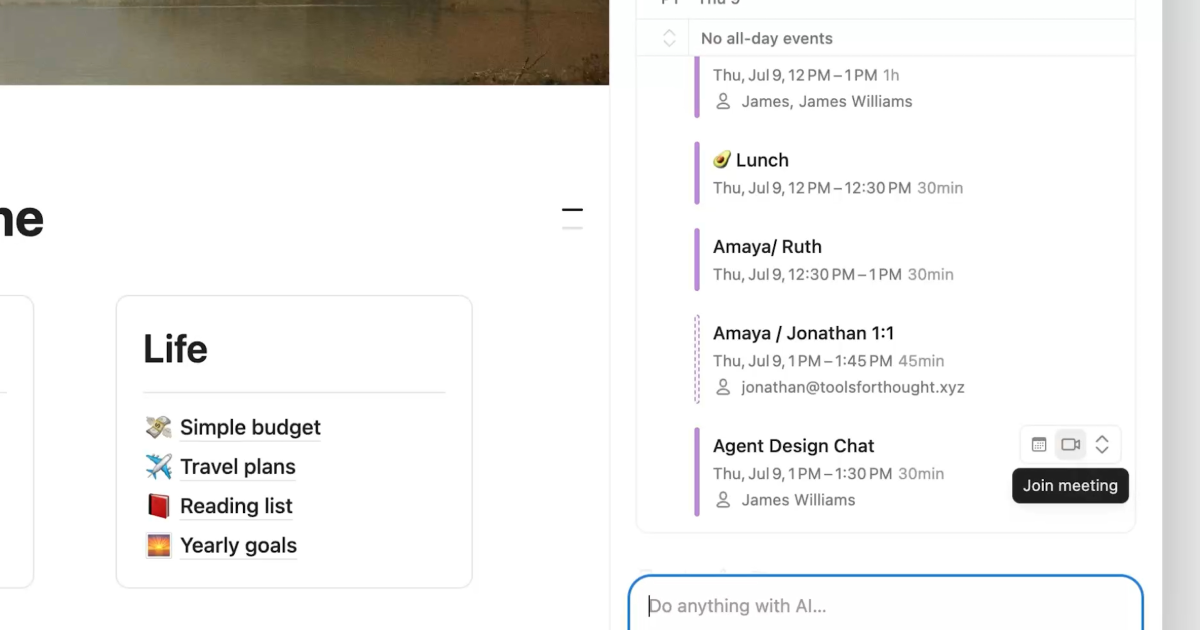
Notion Agent can now show and manage your connected calendar from chat. It can summarize your schedule, find open times, move meetings, send invitations, create scheduling links, and help you join calls.
Notion released the calendar tools on July 16, 2026. They are available on desktop; Notion says mobile support is coming soon.
What the calendar tools can do
| Task | Example request |
|---|---|
| Review your schedule | “What’s on my schedule today?” |
| Move a meeting | “Move my meeting with Sandra to 1pm.” |
| Find an open time | Ask for a time that works for the invited people |
| Send an invitation | Ask the agent to create or update the calendar event |
| Create a scheduling link | “Create a scheduling link for tomorrow between 2-5pm.” |
| Join a call | Ask for the link to the relevant meeting |
The agent can act on calendar information, so review names, dates, time zones, attendees, and conferencing links before confirming an important change.
How to connect your calendar
You can begin in either of two ways:
- Ask Notion Agent to “Connect your calendar.”
- Open Settings > Connections and select the calendar connection offered for your account.
Follow the provider’s authorization screen and read the requested permissions. Sign in only through Notion and the calendar provider’s official pages. A third-party extension is not required for the feature described in Notion’s release announcement.
After connecting, start with a read-only question such as “What’s on my schedule today?” This confirms that the correct account and calendar are available before you ask the agent to move or create events.
How to make a calendar request safely
Give the agent enough context to identify one event without guessing. Include the meeting name, date, current time, intended new time, and time zone when it is not obvious.
For example:
Move the Product Review on Friday, July 24 from 10:00am to 1:00pm Pacific. Keep the same guests and video link, and show me the changes before sending updates.
Before approving the change, verify:
- The calendar and account being used.
- The date and time zone.
- Whether the meeting is recurring.
- Which guests will receive an update.
- Whether the video-call link remains attached.
- Whether the new time conflicts with another event.
For a recurring meeting, specify whether you mean one occurrence or the entire series. That single detail can prevent a much larger unintended change.
Creating a scheduling link
Ask for a date range, time window, duration, and time zone. If the link is intended for people outside your organization, also decide whether buffer time and a limit on daily meetings are needed.
A useful request might be:
Create a 30-minute scheduling link for next Tuesday through Thursday, between 2pm and 5pm Eastern, with 15 minutes between meetings.
Review the resulting availability before sharing the link. Private event titles should not be exposed merely to show that a time is busy; check the calendar provider’s visibility settings if the link will be public.
Desktop and mobile availability
Notion says the calendar tools are available on desktop and that mobile is coming soon. A mobile app may show your Notion workspace without yet offering the same agent actions.
If you cannot find the feature on desktop:
- Update the Notion desktop app or reload the web app.
- Confirm that Notion Agent is available on your account.
- Check Settings > Connections for the calendar option.
- Ask a workspace administrator whether connections are restricted.
- Review Notion’s current release and pricing pages for rollout changes.
Do not disconnect and reconnect repeatedly just because the mobile interface is not yet available.
Permissions and workspace controls
A calendar connection may expose event times, titles, attendees, and meeting links to the connected service. Review the authorization screen and your organization’s policy before connecting a work calendar.
Use the narrowest access your provider and workflow allow. On a managed workspace, an administrator may control which connections are available. If a calendar contains confidential event names or sensitive guest lists, check with the owner or administrator before allowing an agent to act on it.
Our app safety checklist explains how to verify the publisher, permissions, and account connection before granting access.
What Notion has not specified
The release announcement does not provide a complete plan-by-plan availability table, a mobile release date, or support details for every calendar provider. It also does not promise that every calendar action will work with every account or administrator policy.
Use Notion’s live connection screen and current pricing documentation for those details. If an action affects an important meeting, confirm the result in the underlying calendar after the agent finishes.
Official source
Notion describes the supported actions, connection path, desktop availability, and planned mobile support in New calendar tools for your agent.
FAQ
What can Notion Agent do with a calendar?
It can show and manage your schedule, join calls, send invites, find available times, move meetings, and create scheduling links.
How do I connect a calendar to Notion Agent?
Ask the agent to “Connect your calendar” or open Settings > Connections and follow the official authorization flow.
Can Notion Agent reschedule a meeting?
Yes. Notion lists moving meetings as a supported action. Review the event, guests, time zone, and recurrence before sending updates.
Can it create a scheduling link?
Yes. Give the agent a date, time window, duration, and time zone, then review the available slots before sharing the link.
Are the calendar tools available on mobile?
Not yet according to the July 16 announcement. Notion says mobile support is coming soon.
Does every Notion plan include these tools?
The release announcement does not include a full plan comparison. Check your workspace, Notion’s current pricing page, and administrator settings for access.